Run a resident survey
Ask the residents a few questions, remind those who have not answered, and read and export the results, anonymously if you like.
Who: a Complex Admin, an Org or Global Admin inside the complex, or a staff member such as a Board member who was given Run resident surveys under Settings › Roles & permissions. Path: Community › Surveys.
A survey asks the residents a few short questions, such as how the cleaning goes or what the courtyard should get first. Owners, tenants and family members answer it in the app, and you follow the answers as they come in.
Write the survey
-
Open Surveys and select New survey.
-
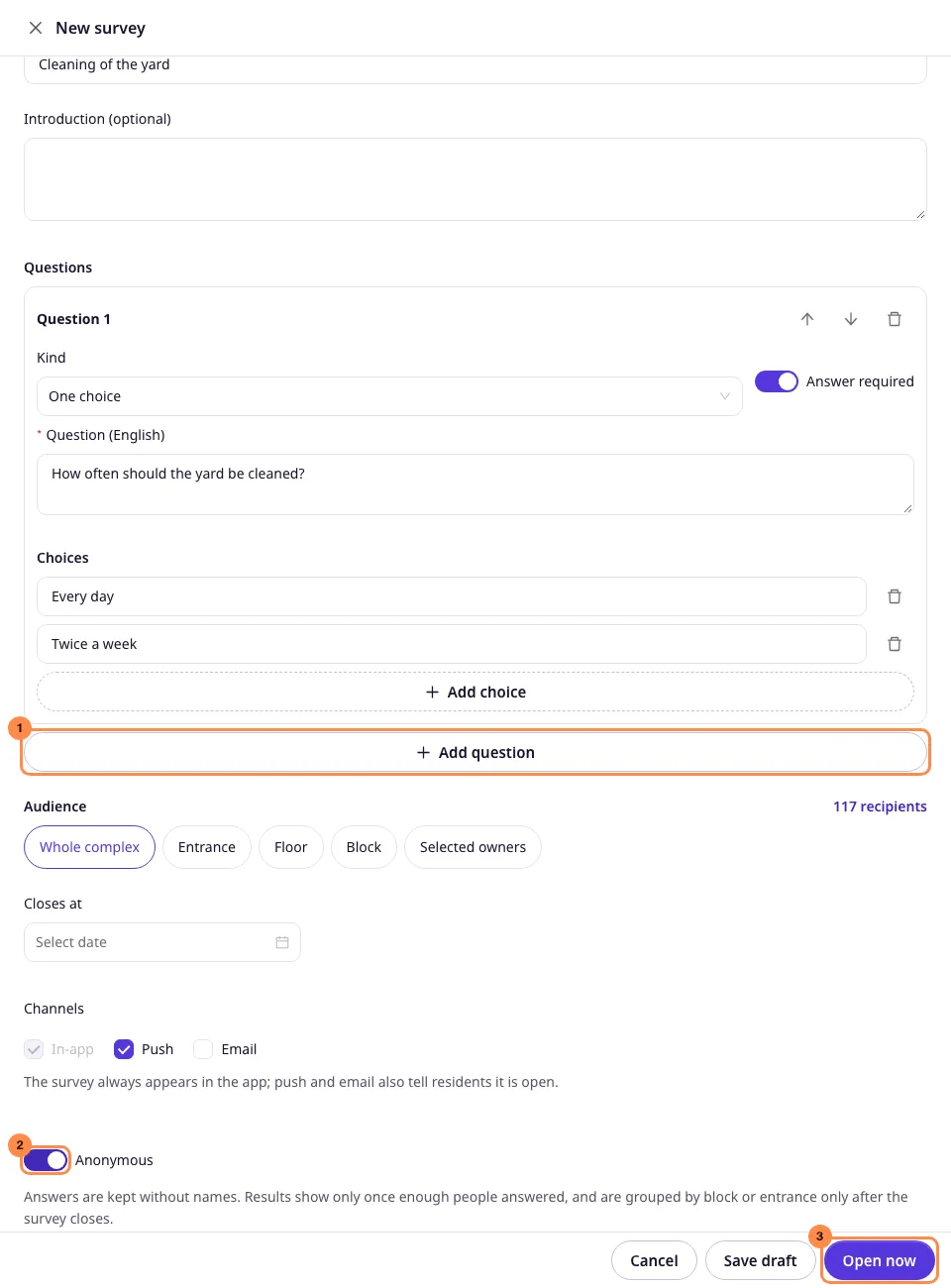
Give it a Title and, if you like, a short Introduction. The title can be in any one language, but every question and choice needs its English text; switch Language to add Armenian or Russian. Residents read their own language where it is written, else English.
-
Write the first question and choose its Kind: One choice, Several choices, Rating 1–5 or Written answer. A choice question needs at least two choices. Turn Answer required off for an optional question.
-
Select Add question for each further question, up to 30. For a rating about how residents feel, turn on Counts toward the satisfaction score.
-
Choose the Audience: the whole complex, some entrances, floors or blocks, or selected owners. The number of recipients updates as you choose.
-
Set Closes at, and the Channels that tell residents the survey is open: it always shows in the app, push and email are optional.
-
Turn on Anonymous if nobody should see who answered what (see below).
-
Select Open now and confirm. Save draft keeps it to finish later instead.
Once open, a survey can no longer be edited: the residents all answer the same questions.
While it is open
The list shows how many recipients answered, such as 10 of 40 answered · 25.0%. Select Results to see the answers so far, marked Interim.
To nudge those who have not answered, select Send reminder. Only they get it, and the next reminder can go 12 hours later at the earliest.
Residents can change their answers until the survey closes. It closes by itself at Closes at, or select Close to end it sooner. Cancel survey stops it for good.
Read and export the results
Select Results on a closed survey:
- each choice question shows how many people picked each choice and the share,
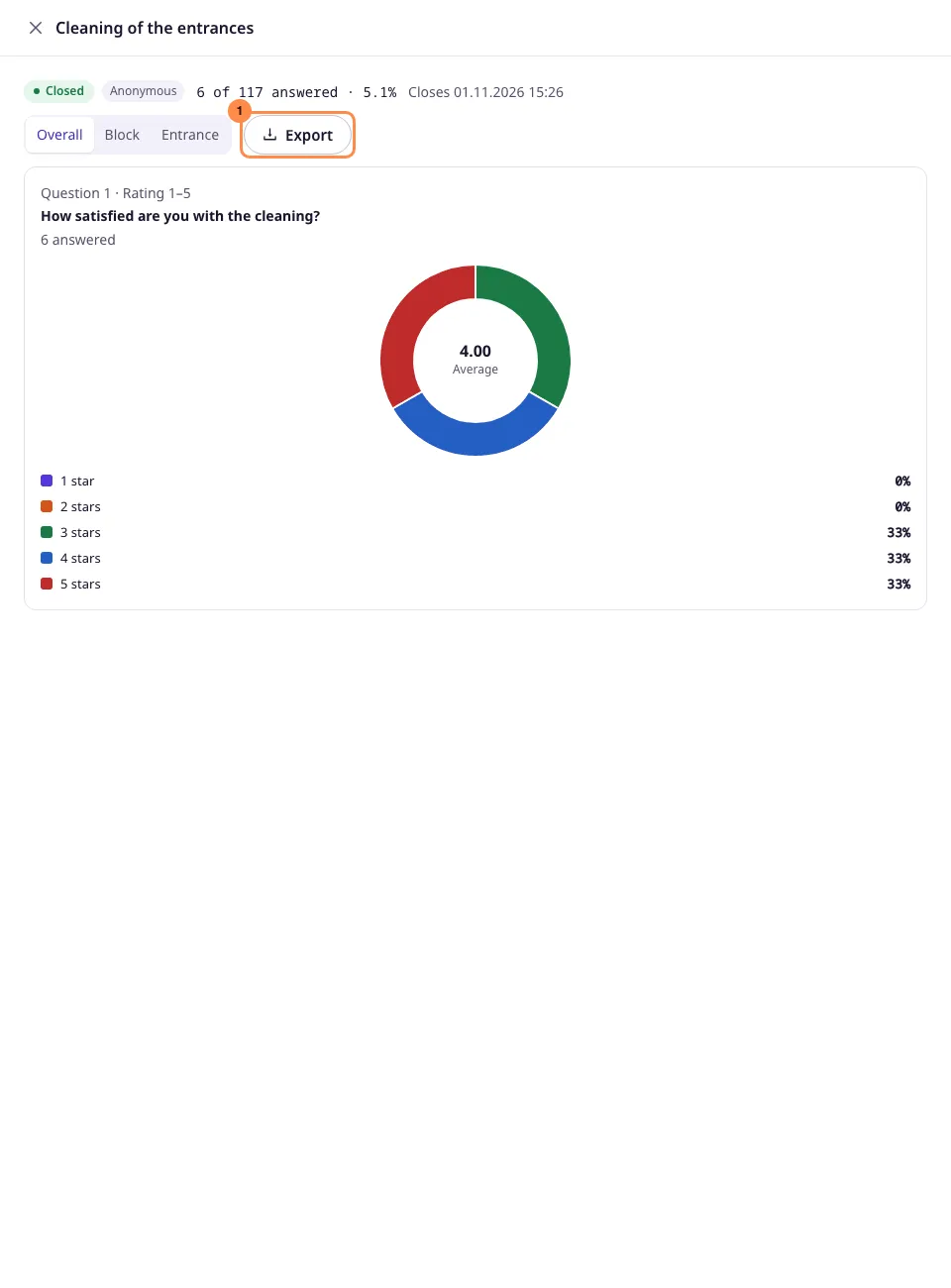
- a rating shows how the stars were spread and the average,
- written answers are listed, without names in an anonymous survey.
Group by splits the results by block or entrance. Export makes an Excel or PDF file of the overall results for the board or a meeting.
Anonymous surveys
When Anonymous is on, the portal keeps each answer without the name of the person who gave it. Nobody using the portal can see who answered what, you included; only the provider’s technical staff, with access to the database and its keys, could link the two. To keep it that way:
- Results show only once enough people have answered. Until then you see Not enough answers yet. The number is set for the whole platform; it is 5 unless your provider changed it.
- Results are split by block or entrance only after the survey has closed, and only when, for every block and entrance the respondents live in, that many people answered, whichever way you group. Otherwise you get a warning and the overall results stay; the groups are never shown partly, so no small group can be singled out.
- Written answers are shown in a random order and without names, so the order does not give away who answered first.
- Reminders still reach only those who have not answered. The portal knows who answered, so it does not bother them, but it never shows you who that is.
While the survey is open, the interim results change as each answer comes in. Watching them closely, you could tie a change to someone you know just answered, so don’t. Residents also give themselves away in what they write, such as the flat with the dog on the third floor: the portal can’t hide that.
A survey that is not anonymous keeps the names. Anyone who also holds Manage owners, residents & staff sees who wrote each written answer, and a group smaller than the minimum is counted under Other.
Rules
- A survey can’t be edited once it is open, and a closed or cancelled one can’t be opened again.
- Residents see the totals of a closed survey, never the written answers.
- Opening, closing, cancelling and each reminder are written to the audit log, without any answer.