Book a move-in or move-out
Read the move rules, book the freight elevator or loading bay for your move, bring the documents the rules ask for, and follow the booking until it is done.
Moving in or out? Book your move ahead, so the freight elevator or loading bay is yours for that time and the front desk expects your movers. Owners, co-owners and tenants book moves for their own units. The management office approves the move, and you follow each step.
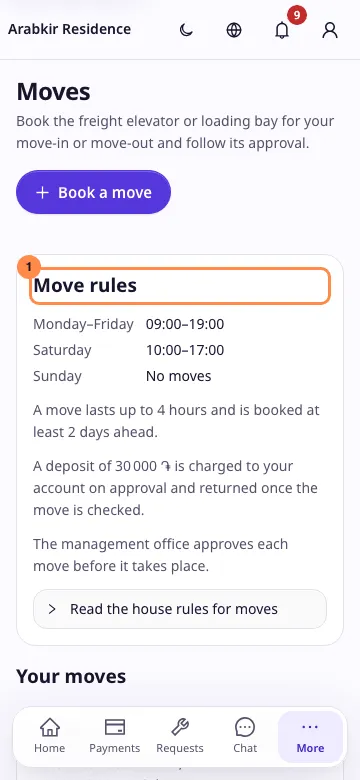
Read the move rules
Open Moves (under More on a phone, in the sidebar on a computer). The Move rules card at the top shows:
- the hours moves are allowed on weekdays, on Saturday and on Sunday (No moves on a day without hours);
- how long a move may last and how far ahead it must be booked;
- the deposit, if the complex charges one when a move is approved;
- the documents to bring, such as a lease agreement or the movers’ insurance;
- whether the management office approves each move first;
- Read the house rules for moves opens the complex’s rules, in your language when the management office wrote them in it, otherwise in English.
Book a move
Tap Book a move at the top of the page, or Book a move among the quick actions on your Home page, which opens the form with Move-in chosen.
- Choose the Unit, if you hold more than one.
- Choose Move-in or Move-out.
- Choose the freight elevator or bay, if the complex has more than one.
- Pick the Day. Days without move hours cannot be picked.
- Choose How long the move takes, up to the longest the rules allow.
- Pick the Start time. Only times inside the move hours, far enough ahead and free for the whole move are offered; a time that is not free for the whole move shows as Taken. When the complex has no freight elevator to book, type the start time instead.
- Add the Moving company and the Movers’ phone, so the front desk can reach them on the day, and a Note for the management office if needed.
- Attach each document the rules ask for, and any other documents: up to 5 files in all (PDF, JPEG, PNG, WebP or HEIC, 20 MB each).
- Tap Book the move.
Move #4 requested. confirms it. When the management office does not approve moves first, the move is approved at once.
If the time you picked was taken a moment before you booked, you are told so and the free times are shown again.
When the portal suggests a move
After you buy a unit and the ownership transfer is completed, the Moves page may show Book your move-in to unit 47. Tap Book your move-in to open the booking form for that unit, with Move-in already chosen.
Follow your moves
Your moves lists the moves of your units. Each card shows the number, move-in or move-out, the unit, the day and time, the freight elevator, its status and its steps: Requested, the decision, In progress and Completed.
- When the management office adds a note to its decision, for example the reason for a rejection, you see it as Note from the management office.
- When a deposit is charged on approval, the card says how much and, once the move is checked, whether it was returned in full, partly kept for damage or kept.
- When documents are attached, tap their count, such as 2 documents, to list them, then tap one to open it.
You are notified when the move is approved or rejected, and the notification opens the move.
Cancel a move
Cancel move cancels a move that is requested or approved and has not started yet. The booked time is released, and a deposit already charged is returned to your account. Only the person who booked the move can cancel it; another holder of the unit sees it but cannot cancel it.