Brand your portal
Give the portal your organization’s name, logo, colours, fonts, contacts and email sender, and check the result before owners see it.
Who: an Org Admin of an organization whose plan includes White label (Enterprise does); a Global Admin from the organization’s Branding tab. Path: Organization context › Sidebar › Settings › Branding.
Steps
-
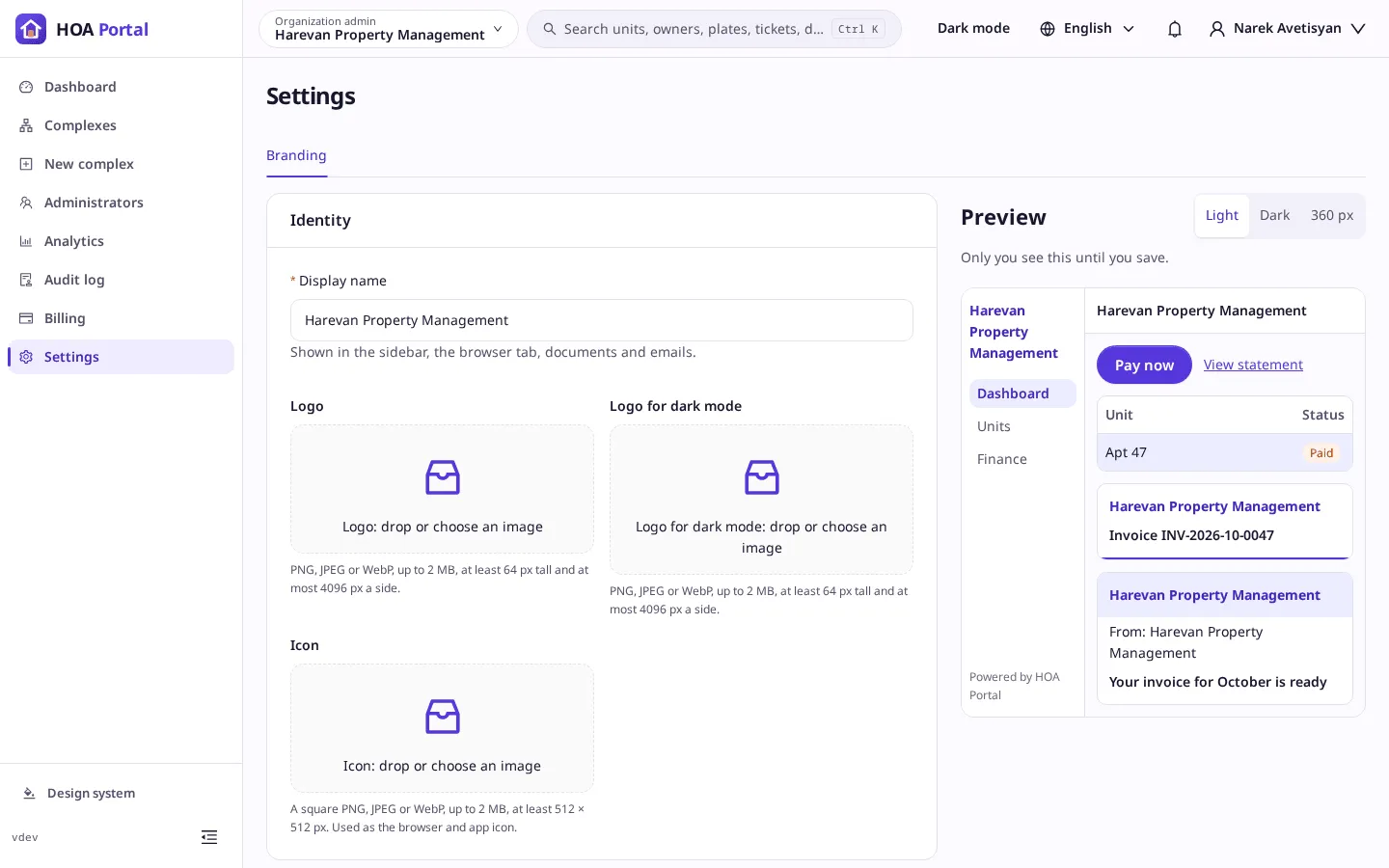
Pick the organization in the context switcher and open Settings. Branding is its tab. Without White label the page is read-only: a banner names the Enterprise plan, with Contact sales and View plans.
-
Under Identity, set the Display name shown in the sidebar, the browser tab, documents and emails. Drop or choose the Logo, the Logo for dark mode and the Icon: PNG, JPEG or WebP up to 2 MB, a logo at least 64 px tall, the icon a square of at least 512 px. Each image is saved as soon as it is uploaded.
-
Under Colours, pick the Primary colour (1) and the Accent colour, with the picker or as a code such as
#0f6e6e. The contrast report (2) checks every colour pair in light and dark mode against WCAG AA (the accessibility standard for readable text) and marks each one Pass or Fail. The Preview (3) shows the result in light, dark or at 360 px; only you see it until you save.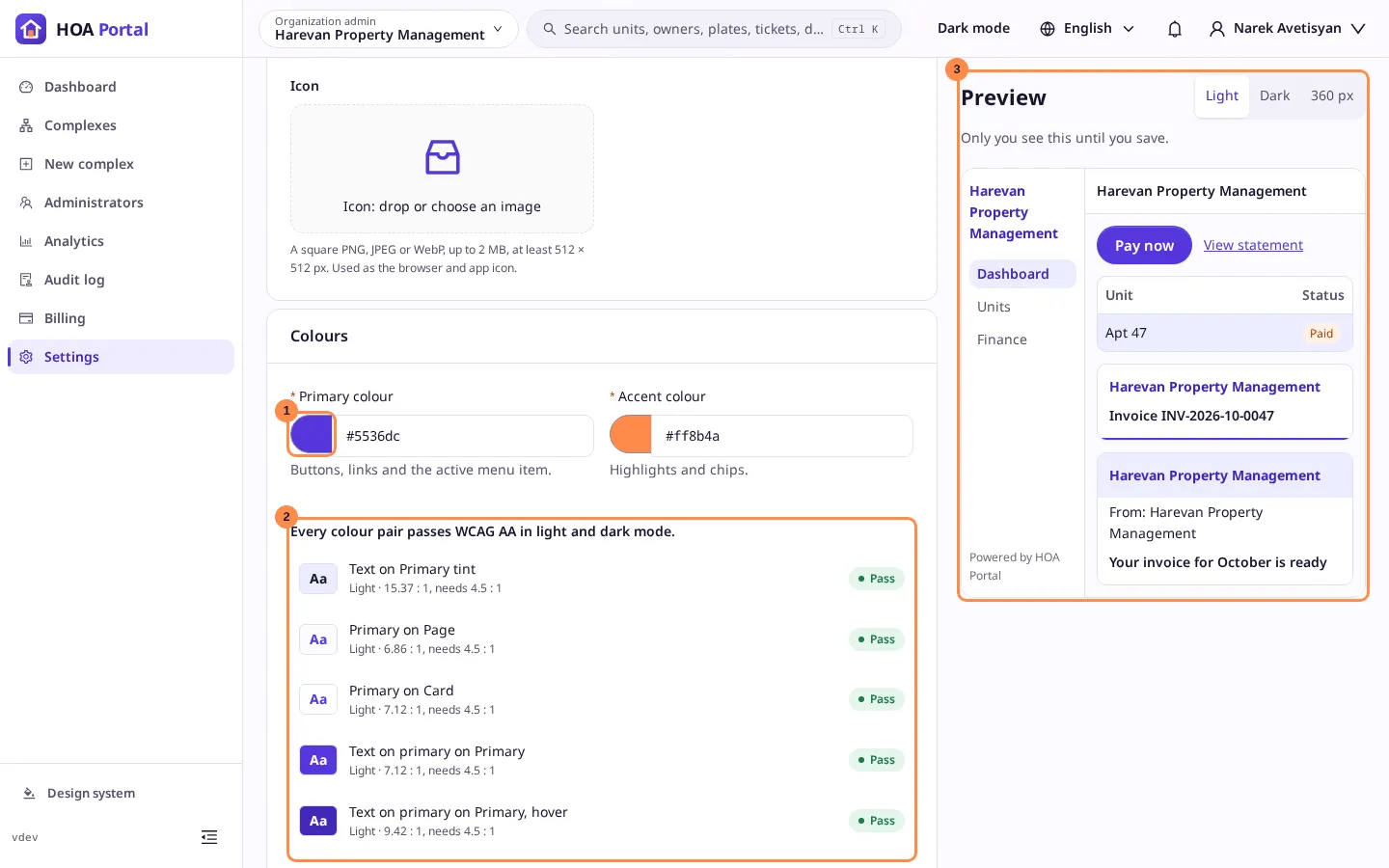
-
Choose the Font and the Corner radius; the font sample shows English, Armenian and Russian.
-
Under Contact and footer, add the support email, phone and website, and the Legal footer printed on invoices, statements and emails. The footer is optional; once you fill any language, English is required too.
-
Under Emails, set the Sender name and the Reply-To address. Saving a new address emails it a confirmation link; replies go there only once someone opens the link and selects Confirm address. Resend confirmation sends a new link.
-
Switch Show “Powered by HOA Portal” off if you do not want the line under the sidebar menu, then select Save brand.
Result
The toast says Brand saved. Everyone in the organization sees it now. Owners, residents and staff of every complex see the new brand at once.
If a colour fails the contrast check, the save is refused, the failing pair is marked and the colour shows the reason: pick a darker or lighter shade. If a colleague saved meanwhile, choose Reload to see their version or Keep editing to carry on. Reset to default returns everything to the HOA Portal brand.
A complex can show its own name and logos over the organization’s brand: a Complex Admin sets them in the Branding section of the complex profile.
Use your own domain
With Custom domain in the plan, owners can open the portal on your own address, such as portal.example.am, and sign in there in your brand. The links in their invitation emails point there too.
- Under Custom domain at the bottom of the page, enter a subdomain you control in Domain and select Add domain. Apex domains, such as
example.am, are not supported. - Add the two records the page shows, a CNAME and a TXT, at your DNS provider. Each has a copy button.
- Select Check now, or wait: the portal checks every few minutes. The status moves from Waiting for DNS to Issuing certificate and then to Live. If a record is missing, the page names it.
Only your organization’s own accounts sign in on your domain; anyone else is sent to the main portal address. Remove takes the domain off: the portal stops answering there, and links go back to the main address.