Configure the global settings
Turn languages and currencies on or off for the whole platform, add the fee templates complexes will use, and edit the notification texts.
Who: the Global Admin. Path: Platform context › Sidebar › Settings.
Languages
- Open Settings; Languages is the first tab.
- Switch Enabled on or off for Armenian and Russian. English always stays on.
- Pick the Default for new users. It must be an enabled language.
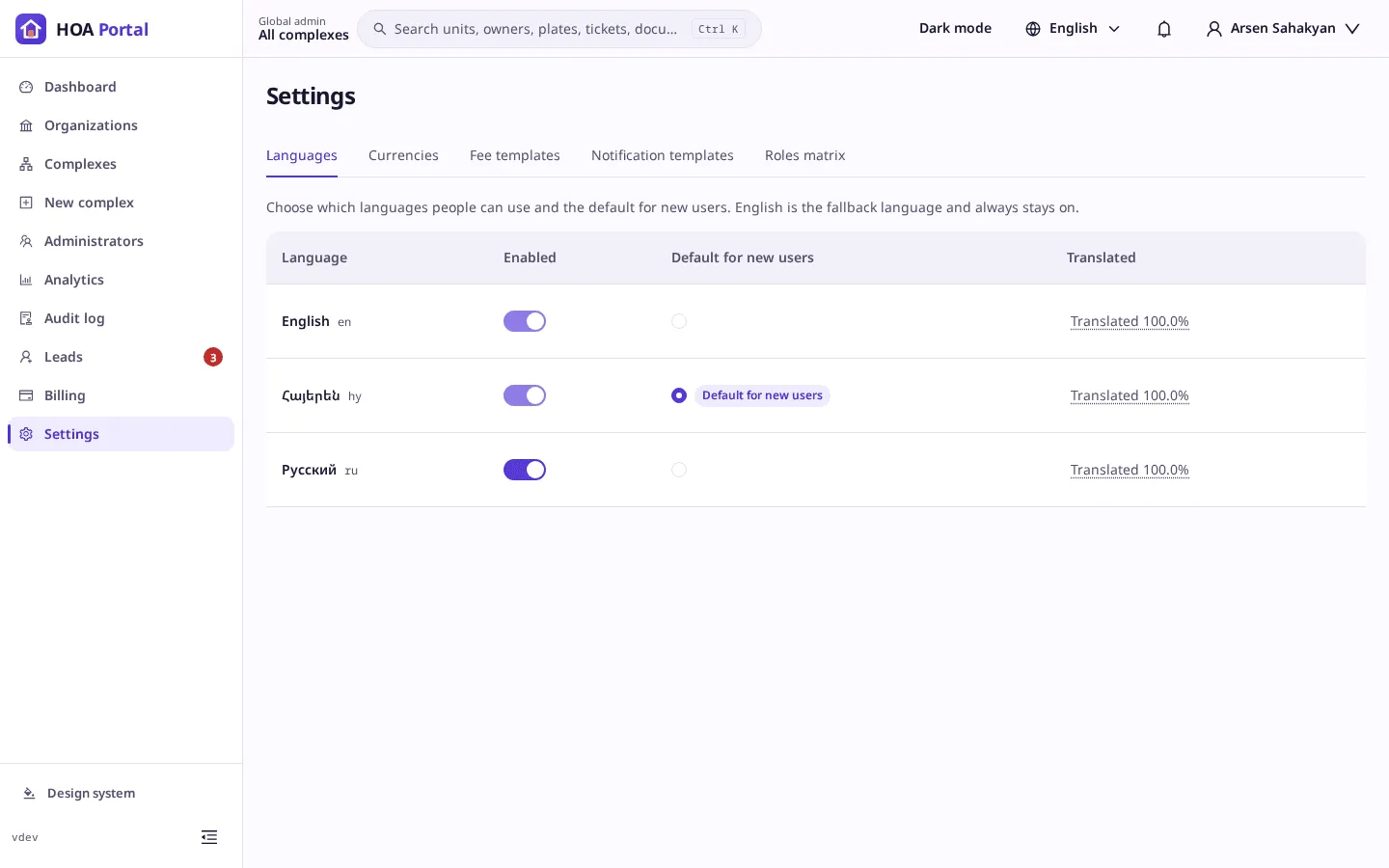
Each change saves at once: Language settings saved. The Translated column shows how complete each language is.
Currencies
- Open the Currencies tab.
- Switch Enabled for the currencies organizations and complexes may choose. Usage shows who already uses each one; turning a used currency off only stops new choices.
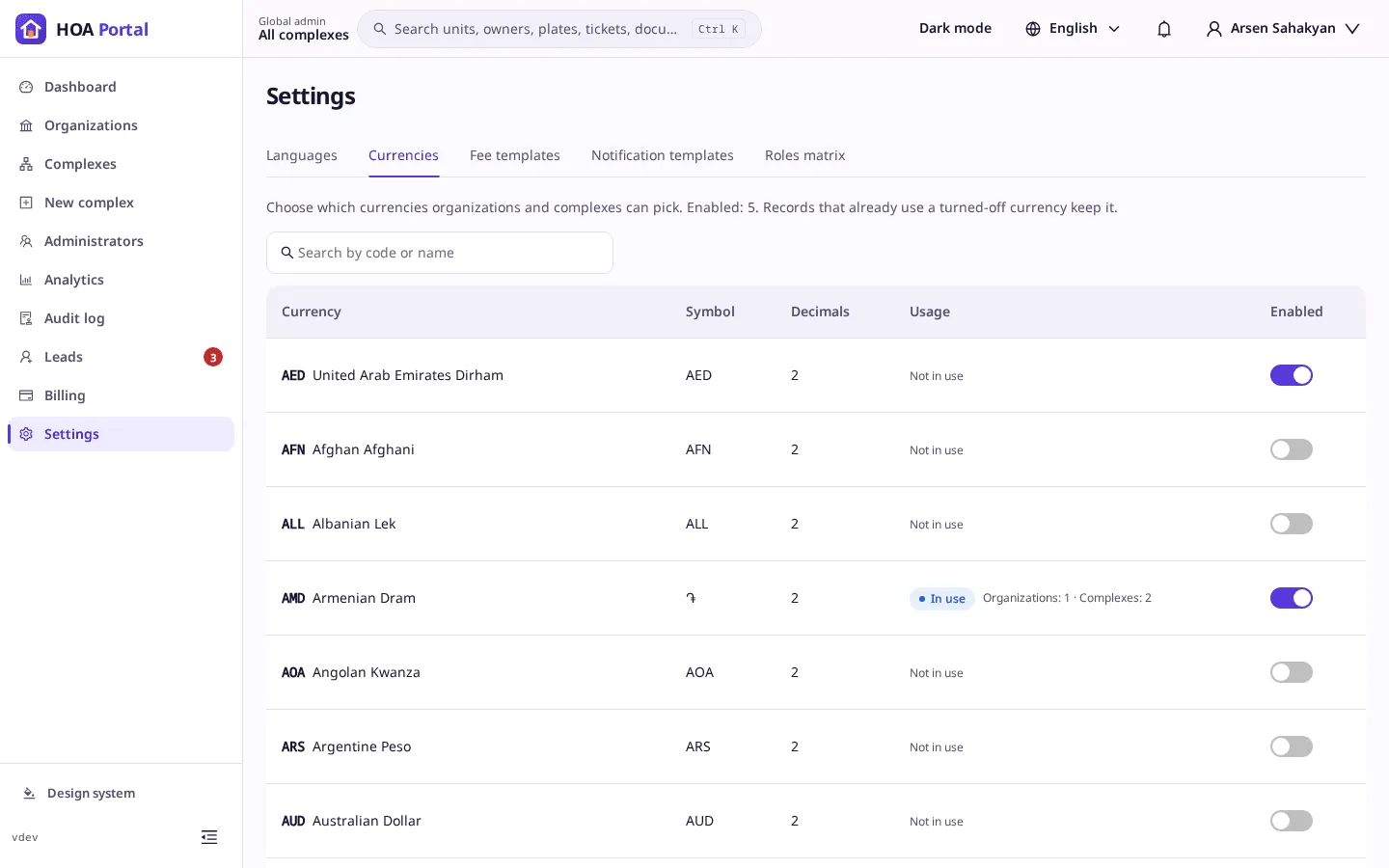
At least one currency stays on.
Fee templates
- Open the Fee templates tab and select Add template.
- Enter the Name in English, and in Armenian and Russian if you like; the Amount and Currency; how it is Charged, such as per m² / month; and whether it is Active.
- Select Add template.
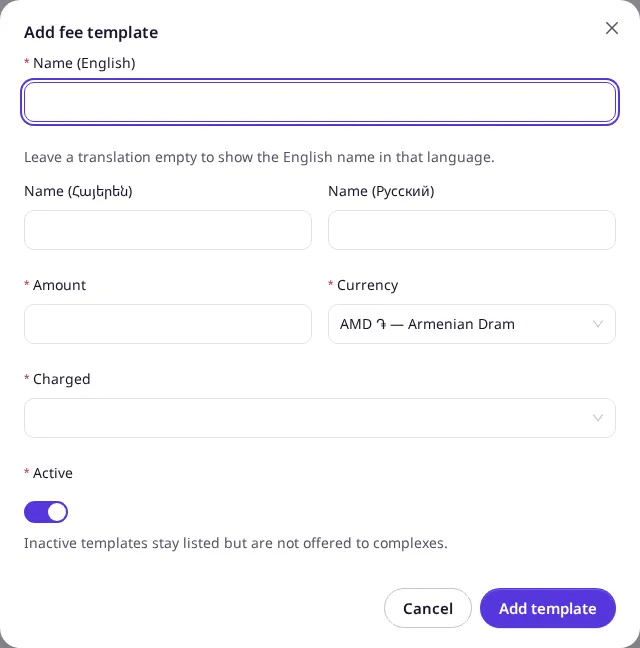
The toast says Fee template “…” added. An inactive template stays listed but is not offered to complexes.
Plans
- Open the Plans tab. The Free, Standard and Enterprise plans of the pricing page are already there.
- Select Add plan. Enter a Code, such as
STANDARD_USD, the Name in English (Armenian and Russian are optional), the Currency and the Billing period. - Set the prices: Base fee, Per complex, Per active user and Per GB over the included storage. Under Unit prices, add a tier per unit type: From unit 1, a To unit or No end, and a Price per unit. Under Limits, set what is Included and an optional Cap.
- Select Add plan, then Publish it from the list.
The toast says “…” published as version 1. To change the prices later, edit the plan: the change is saved as a draft, and organizations keep the current version until you Publish again. Preview price shows what a usage would cost.
Notification templates
- Open the Notification templates tab. Each row shows the template’s Channels and which Languages still miss a text.
- Select Edit on a row, then the Channel and the language tab.
- Edit the Message (and the Subject of an email or the Title of a push). Select a placeholder to insert it; the Live preview shows the result with sample values.
- Select Save.
The toast says Template text saved. A language without its own text gets the English one.
Result
Every change is recorded in the audit log. See Languages, Currencies, Fee templates and Notification templates for the rules. Plans are explained in Billing plans.