Save a view and export a list
Keep the filters you use every day under a name, export a list to Excel, CSV or PDF, and download it from My exports.
Who: anyone who can open a list with a View menu or an Export button. Path: A list › View › Save as new view…, and Export, then User menu › My exports.
Save a view
-
Open a list, such as Units, and set it up: search, filters, sorting, columns.
-
Open the View menu. It lists the preset views, your saved views and Save as new view….
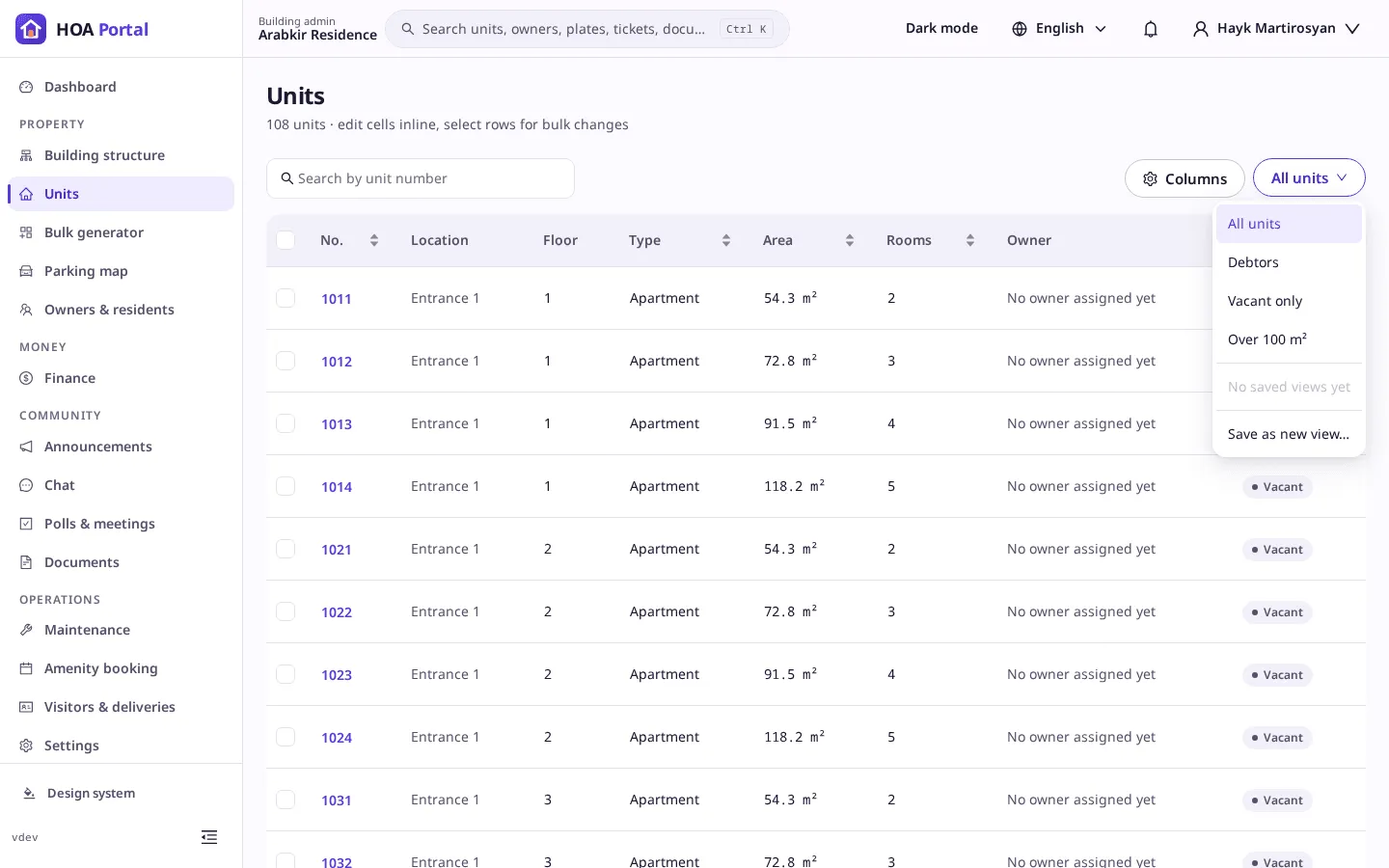
-
Select Save as new view…, give it a Name and, if you like, tick Open this view by default. Select Save.
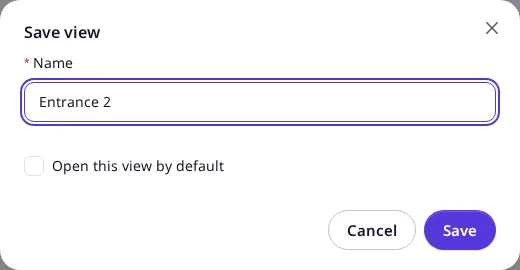
The toast says View saved. Next time, pick the view from the same menu, or let it open by default.
Export a list
-
Open a list with an Export button, such as the Audit log, and filter it to what you need.
-
Select Export and a format: Excel (.xlsx), CSV (.csv) or PDF (.pdf).
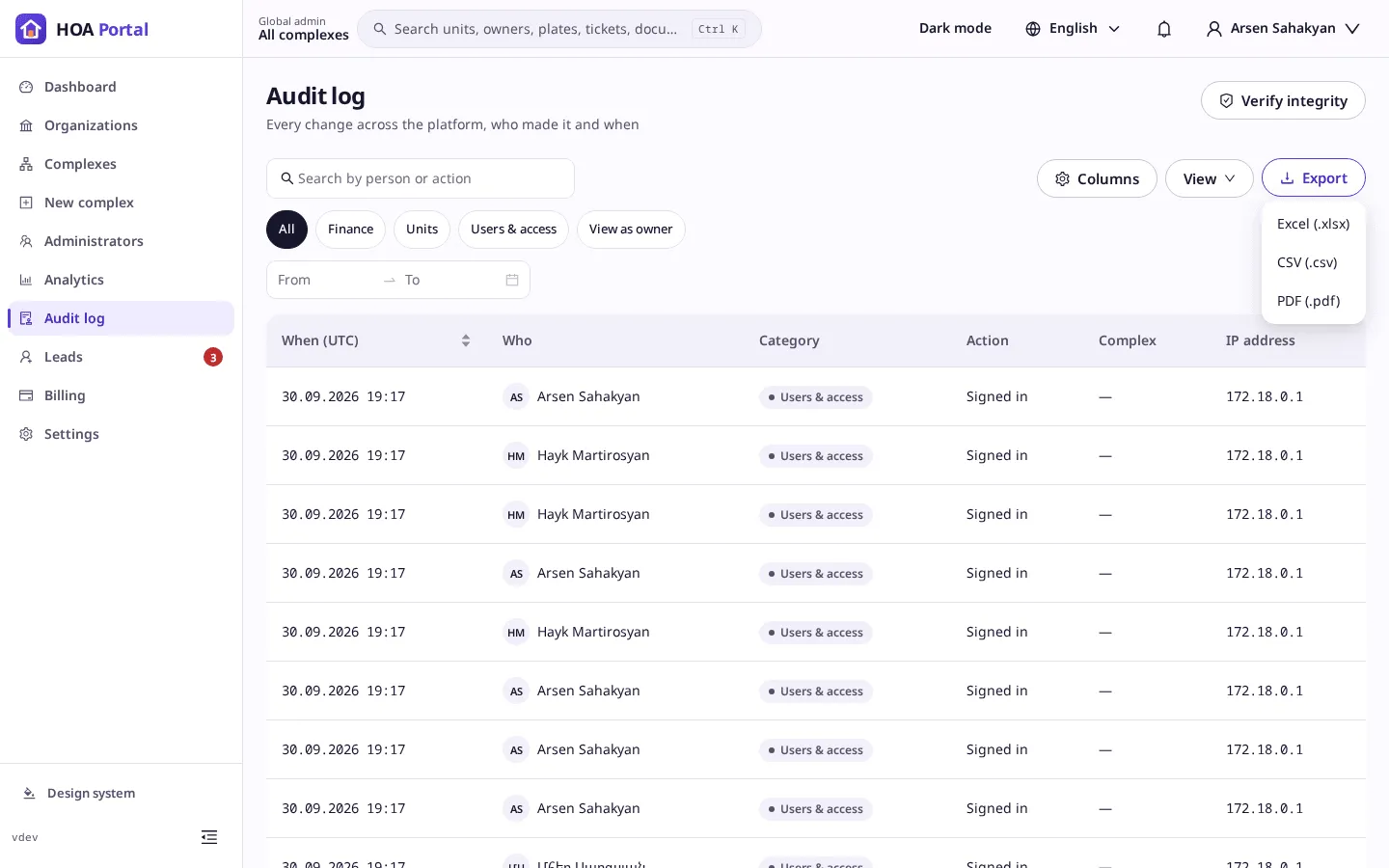
-
Export started. The file will download shortly. When the file is ready, a message offers Download, wherever you are in the portal.
Download it later
Open the user menu at the top right and select My exports. Every file you exported is listed with its format, status and when you asked for it. Download a ready file; files are kept for 7 days.
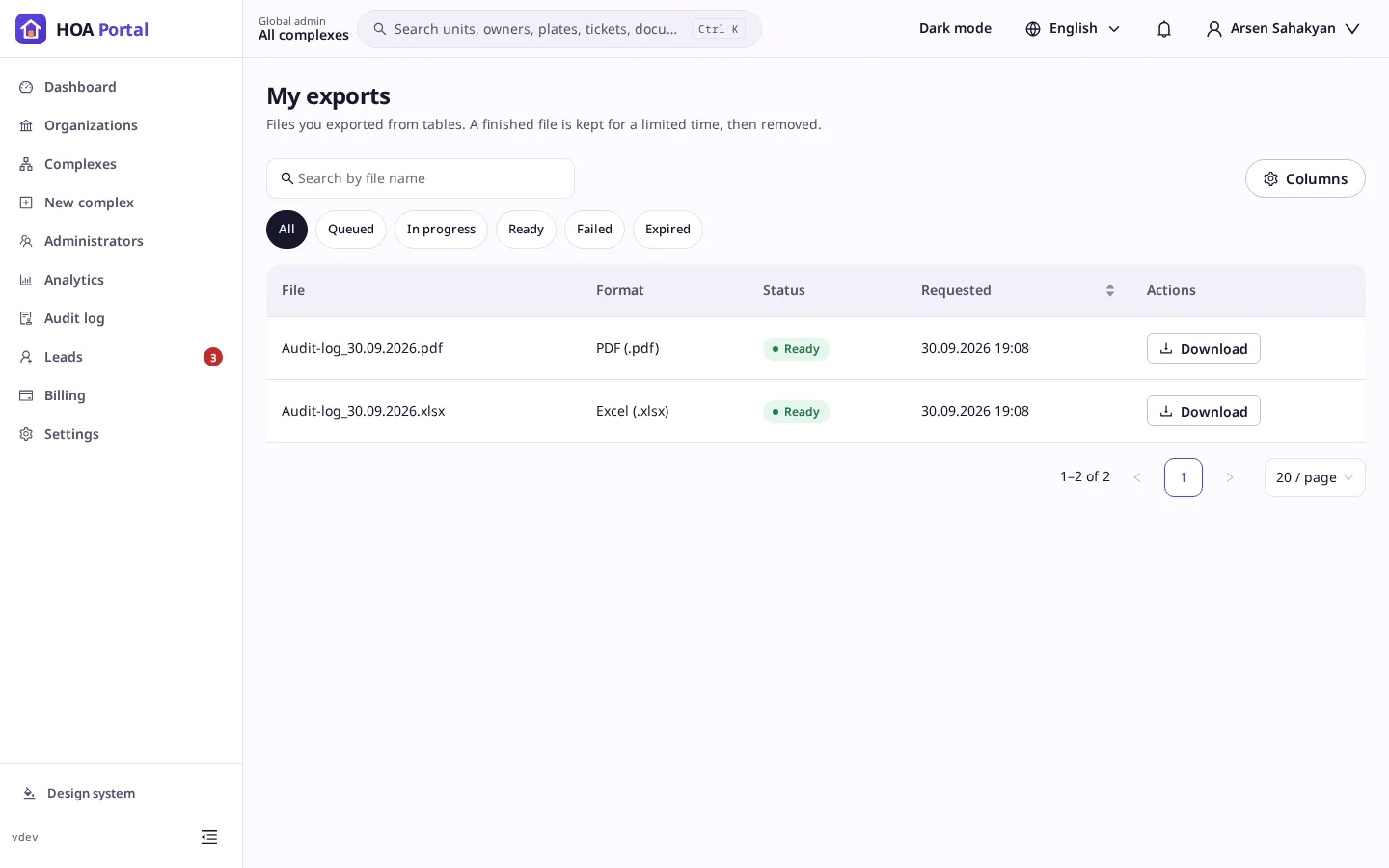
Result
Saved views are yours alone. An export holds up to 10,000 rows, and you can have up to three in progress; see Saved views and exports.