Approve moves and settle deposits
Approve or reject the move-ins and move-outs residents book, start and complete them, settle the deposit after the common areas are checked, and act on suggested moves.
Owners and tenants book their move-ins and move-outs (Book a move-in or move-out). The management approves each move in Operations › Moves, follows it on the day and, when it is done, checks the common areas and settles the deposit. Complex Admins do this, and Org and Global Admins can too, inside the complex. A staff role can be given the permission in the roles matrix.
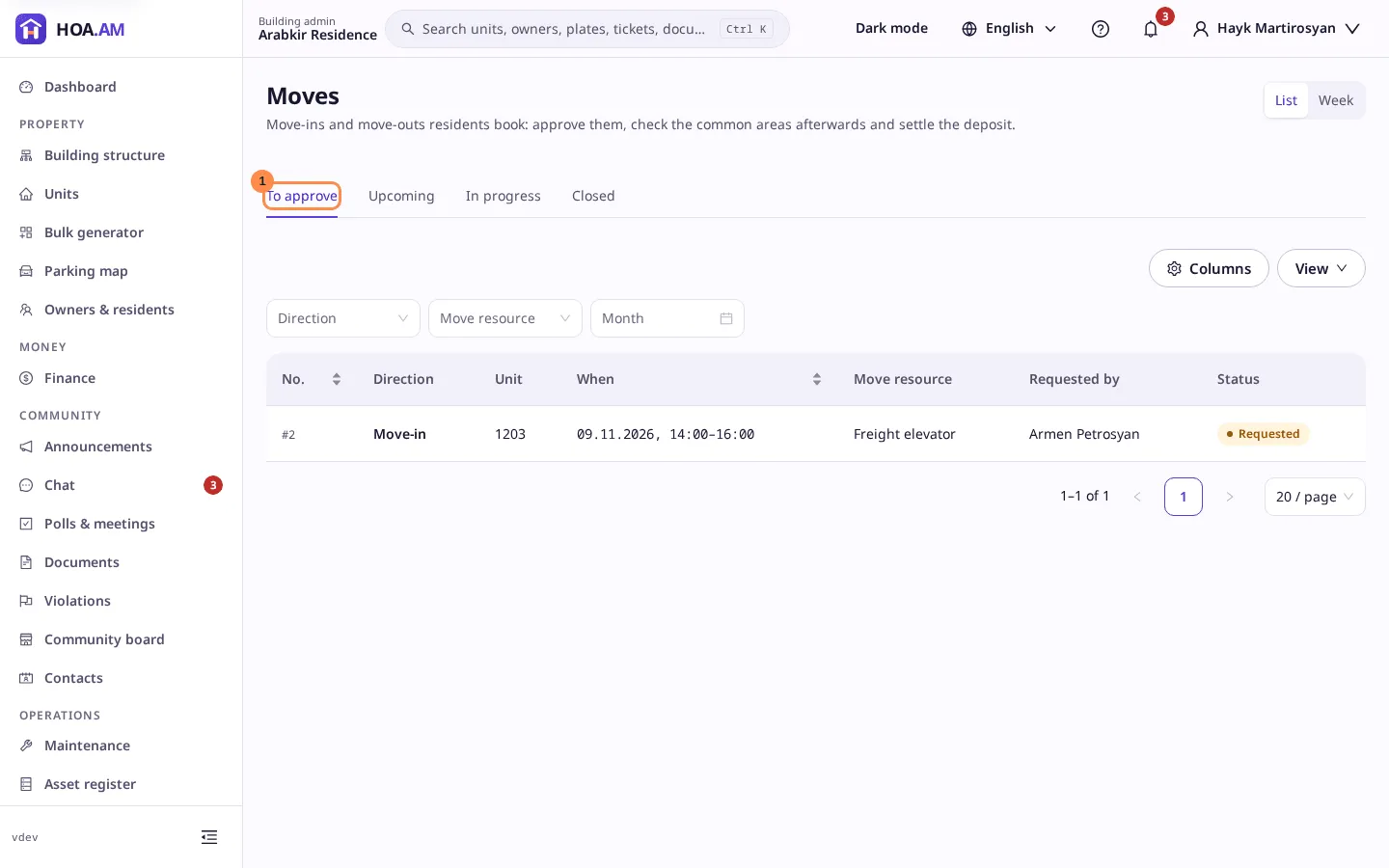
The list
Moves lists the moves in four tabs:
- To approve: moves a resident has requested.
- Upcoming: approved moves that have not started yet.
- In progress: moves under way.
- Closed: completed, rejected and cancelled moves.
Filter by Direction (move-in or move-out), by Move resource or by the month of the move. Save a filtered list as a view to come back to it. A new move notifies you, and the notification opens the move directly.
Switch the view from List to Week to see a week of moves, Monday first, on one move resource, such as the freight elevator, or on all of them. Click a move to open it.
Suggested moves
When an ownership transfer completes or a tenancy ends, the portal suggests a move for the unit: a move-in for the new owner and a move-out for the one who leaves. The open suggestions are listed above the moves, with the unit, the person and the reason. Booking the move clears its suggestion. Click Dismiss for one that needs no move. You never dismiss a suggestion about yourself or about a unit you own.
A move
Click a move to open it. You see:
- the unit (click it to open the unit card), the date and hours, the move resource it books, who booked it and the movers with their phone;
- the resident’s note, and any decision note or common areas check already given;
- the documents, such as the lease or the movers’ insurance, which open when you click them;
- the unit’s owners, if you manage owners, and the other moves of the same unit;
- the deposit, once one was charged, and what came back of it.
Approve or reject
- Approve: the move goes ahead as booked. When the move rules set a deposit, the dialog says how much is charged to the unit’s account.
- Reject: give the reason. The resident sees it and the window is freed.
You can add a note to any action. You never approve, reject or complete a move you booked yourself, or one of a unit you own: those buttons are not shown, and another manager decides.
On the day
Click Start when the movers arrive. The front desk also starts the move when it lets the movers in (Visitors & deliveries). You can note the state of the common areas.
Cancel the move frees the window. If a deposit was charged, it is returned to the unit. A move you booked yourself can be cancelled only before it starts, and you cannot cancel a move whose deposit is held on a unit you own.
Complete the move and settle the deposit
When the move is done and the lobby, elevator and stairs are checked, click Complete. If a deposit was charged, choose what comes back of it:
- Returned in full: the whole deposit is credited back to the unit.
- Partly kept for damage: the deposit is credited back, and the damage you enter (above zero, at most the deposit) is charged to the unit.
- Kept: the deposit stays charged. Say why in the note.
The unit’s ledger shows the charge and its return or the damage.