Answer a survey
Answer a survey from your building, change your answers until it closes, and see the totals afterwards.
Who: an owner, tenant or family member the survey was sent to. Path: Surveys (on a phone, under More).
Your management sometimes asks the residents a few questions. You get a notification when a survey opens, and Home shows it under Your opinion is asked until you answer.
Answer it
-
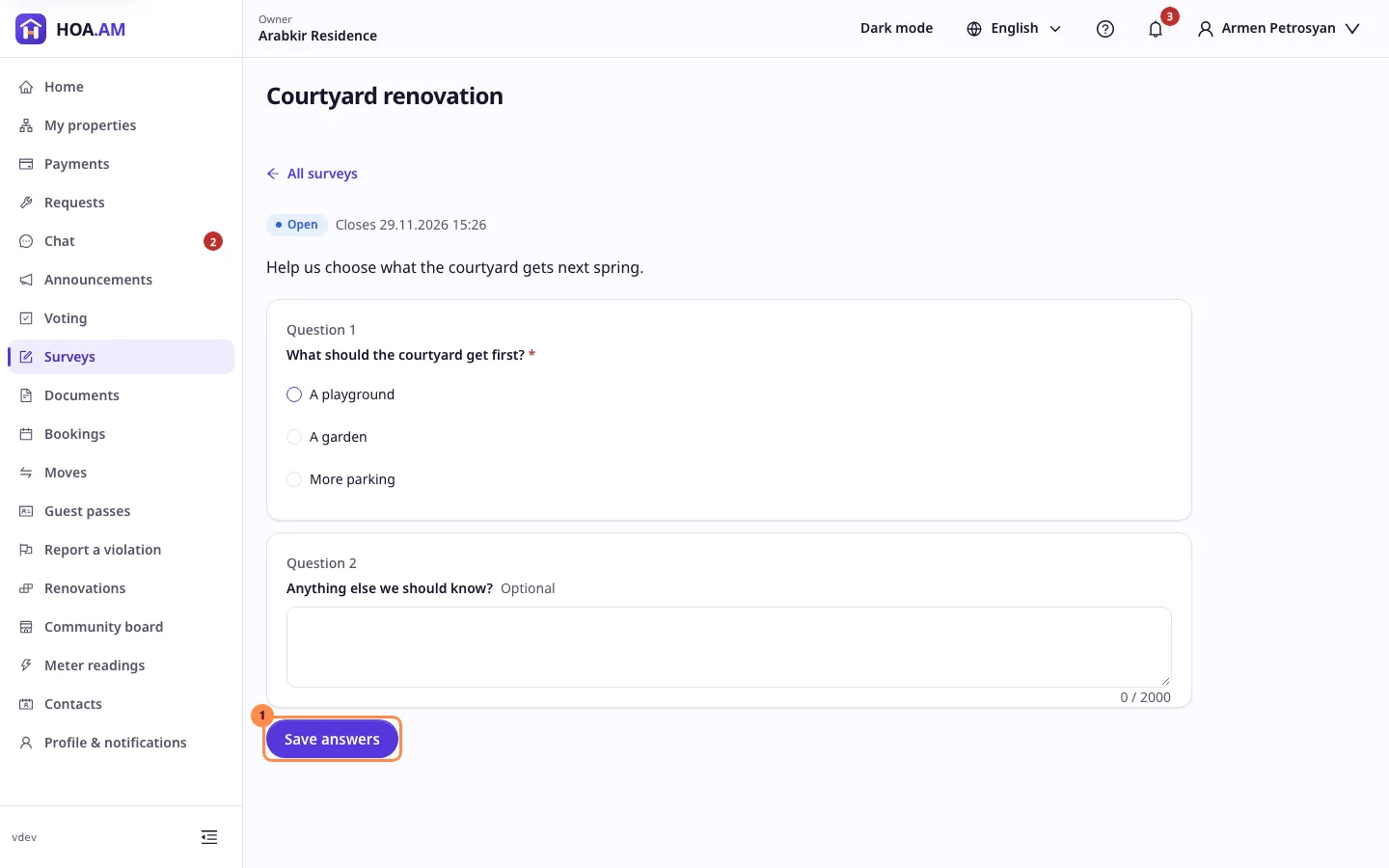
Open Surveys and select Answer on the survey, or open it from the notification or from Home.
-
Answer each question. A question marked * needs an answer; the others are Optional.
- One choice: pick one.
- Several choices: tick all that apply.
- Rating 1–5: choose the stars.
- Written answer: type up to 2,000 characters.
-
Select Save answers.
The survey now shows Answered in your list.
Change your answers
Until the survey closes, open it again, change what you want and select Change answers. Your new answers replace the old ones; nothing of the first ones is kept.
See the results
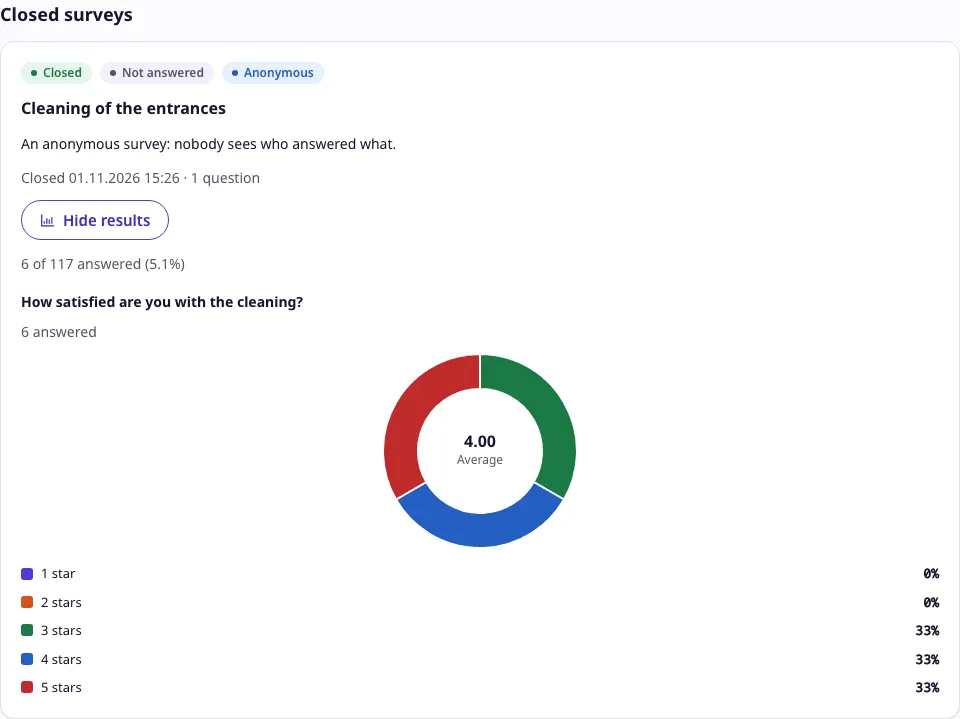
Once the survey has closed, select See results on its card under Closed surveys. You see how many people answered and, for each choice and rating question, the share of each answer and the average rating. Written answers are not shown to residents.
Anonymous surveys
An anonymous survey says This survey is anonymous above the first question. It means:
- your answers are counted without your name: nobody using the portal, the management included, can see what you answered; only the provider’s technical staff, with access to the database and its keys, could link them to you;
- residents see the totals only after the survey closes, and only when enough people answered. While it is open, the management sees the totals change as answers come in;
- what you write can still give you away: leave out details that point to your flat or family if you want to stay unknown;
- you may still get a reminder until you answer, because the portal knows that you answered, not what.